Friday, 27 April 2012

Final Animation; The finished Product (College Work)


Here is my final animation, clumped up into one whole clip. I originally was going to render the whole animation in one, but I felt it would give the animation more character if I was to edit clips all together.
I edited the whole animation on iMovie, putting the clips into order and added fade in and out animations to form the clip together. The filter on the video itself is the Cartoon filter. It created a gorgeous fade or blur which really makes the style of the whole animation more gorgeous and fine, how I wanted it to feel.
I feel I could have improved on my animation by making the animation longer and appealing. Where the animation shows the first ball, landing onto the base, I should have made this clip much longer for the watcher to see what was going on. The rise scene, it was quite unfortunate that the sun didn't move in time with the clips time.

Sunday, 5 February 2012

My Final 3D Animation; The Animating (College Work)

The Animation Steps (To Beginning and End.)
Hand Animation.
Originally I was going to hand animate each of the steps and scenes, however I heard about the Gravity Tool which enables an object to free fall in side the scene. This never worked, so I went on to hand animate each and every scene I needed to do. Using the animation timeline I put each stage into segments of movement. If a snow ball was to fly into the air there would be a point in the timeline where it started, the highest point of where the ball would reach and the drop point. (Which is what you can see beside this text!) This is part of Scene 4 where you see the snowball fly into the air. I wanted all the animation style to be cheesy and contain style. I never used any splines for my objects to attach to, instead I made my own splines by moving/placing and rotating my object to where it needed to go and then recording it into the timeline.


Rolling Animation.
For some of the scenes, I had to use the rotational tool quite a lot. Take Scene 2 for example, the first rolling ball animation in the whole video clip. Sadly, where the object (The Snowball) it self was quite temperamental, and rotated in an inconvenient place, making the rolling animations less realistic and more stylised. On each point of the timeline, I was rotating the ball to 360° and even more when it was needed in certain areas. This gave the full rotating or falling effect to the snowball.


Emitter and Different Lighting for near End Scenes.
From Scene 10 to 13, all had different lighting screens for different times of the day. This was never added into the storyboard, but I thought would be a good show of time passing by and the snowman melting due to changes and damage. However, I felt like I could change the shape of the scarf in each scene, but I was unable to do so because the shape of the scarf was quite complicated in itself, making it harder to work with.
The Emitter on Scene 11 could have lasted longer, but I will be able to edit this. I used a sphere and made it the snow's texture as well as material to match the snow present. The emitter was making 100 spheres each 20 frames to represent falling snow. (Video underneath is Scene 12.)


Camera Placement and Stitching Together the Scenes
Camera Placement.
With the camera, it wasn't moved around a lot in the scenes, but made a big impact (I feel) to the whole animation all together. The camera was also moved around by me selecting the camera perspective and then moving and recording the cameras movements into the timeline below. I would watch the flow of the animation the camera is watching over and follow in its footsteps to make the right viewing. I like Scene 10 the best for this one, where there has been additional add ons to the snow man as the days go by. The camera shows the sky, noticing that it is now night time, and then pans down to the snowman its self. 


My Final 3D Animation; Making the Scenery (College Work)

The basic layout (The Begining/ Setting the scene.)
The Landscapes.
I wanted to get the plain of the whole animation out of the way, so I sprung up a couple of "Landscapes", which you can select from the Object Selector, and picked seed 3 for the Landscapes at the front and the one at the back is seed 10, the one on the far end is seed 8. However, I wanted a flat surface from where the Landscapes ended, so I fixed up a Cube and flattened it, giving the plain a nice straight surface I can work on.

The Grass.
The grass you can see poking through the snow is actually a fur texture you can select from the Material tool (Materials > File > Hair Material > Fur). and can be placed on top of the landscape its self. What I did was copy the already existing landscapes and renamed them "Grass", making them much smaller and a little more underneath the landscape its self so it's not too little or too much "Grass", it's just enough. 

The Sky.
The sky is a simple thing; A sphere with a picture taken of the clouds and sky. I placed the image into a sphere because I believed that it would look more realistic. We do live on a round planet after all! Also, it won't have the nasty edges a cube has, making the scene more beliveable.


Adding Texture, Lighting and the Snow Balls
The Texture.
Getting a snowy texture to pull off is quite hard, specially with limited lighting. I created a texture, selected White for the base colour and then in the bar on the side of the Materials window, I clicked bump and gave the snow a "Rusty" texture, so it had bumps and lumps, like snow has. 

The Lighting.
The lighting was very hard to come up with, but I decided on a pastely yellow colour mixed with a normal pure white light. It gives it all a real life feel, as light isn't pure white or pure yellow, but a mixture of the two on a clear blue day. Snow also isn't purely white, but if I was to pick another colour but white to make it look realistic, it would look fake. 

The Snow Balls.
Snow balls always have that unevenness to them, so I made a sphere and played around with the shape with the Magnet tool. To use the magnet tool and make multiple parts of the snow ball to disfigure, I used the live selection tool to pick out the places I wanted the magnet tool to focus on and then I pulled the sphere apart into rough lumps.


The Rock, Snowman Base and the Scarf
The Rock.
I will make the rock the same way I made the landscapes; Select the Landscape Object from the Object Tool and select seed 1. After I have shrunk it down and formed it the way I would like it to lay, I made a Material for it and named it "Rock", selecting a dark grey and selecting a bump texture called "simple turbulence". This gives the rock a gorgeous rough texture.

Snowman Base.
Just the same as the Snowballs; used the snow material, made the sphere editable, live selection tool and then deformed it with the magnet tool. However, the snowman base is actually a semi-circle, or how you would like to call a Hemisphere in 3D terms. I wanted this so that when I added the texture it wouldn't stretch out around a sphere but instead, around a hemisphere instead.

The Scarf.
The trickiest of them all, I decided to do the scarf above the snowman base, as it will be there through out the animation. I first started off with a free hand spline and did the grooves and shape of a scarf. After I had did that, I placed the spline into a Lathe NURB, creating a circular cylinder which turned out to look like a scarf (But to make it editable I clicked the "make object editable" button). I wanted to change the shape of it, to make it more flexible, so I reshaped it with the Magnet Tool, selecting bits and pieces to reshape it.


All done! The stage is set for the animation to begin.


Friday, 27 January 2012

Giving a Bone Structure to a Object (College Work)

Using the Character selection tools, you can give a bone structure to a object and make them bend or move how you would like it to. I shall make a leg bend and move by using this tool.


First, by selecting a cube onto the stage then using the Extrude tool () to stretch the shape out into what looks like a leg shape with a foot joint attached to the end. I will now give this object a bone structure so I can freely move this object about the way I want it to.


Now with the bone structure in place, this is called the Joint Tool. (Selected this with the Character tool.)
But to join both the bone structure and the cube object together though is a tricky one.


Select three of the joints in the Objects tab which would be the hip, the knee and the ankle. From here, go back to the character tab and select "IK Chain" from the Commands section in Character. This joins each joint together and available to attach to the leg!


To attach something to the object, select everything on the Object Stage area, and then in the Character menu, select Command > Bind. This should create a skin around the object and enables the object to move according to how the user moves it.


Tuesday, 24 January 2012

Design Sketches and Story Board for 3D Animation (College Work)

For my final project, I have decided to go with a winter scene, and a snowman. In this animation will be two balls of snow rolling towards each other, down separate hills to form a snowman. After time, children place items of clothing and a face on the snow man (Although, you shall never see the children, they will not be in scene.)  then finally melting, leaving the scarf and rocks which made the snowmans face, behind.

Here is my Design Sketches.

I thought this would be a lovely little animation, as it shows the passage of time, and how things can not stay forever. I will use a series of textures and little quirks to help me with this animation so it looks how I would like to have it. An Emitter NURB will help exceptionally well to show the collision of the snow balls when they smash together. The scarf will be made by a freehand spline which is connected to a Lathe NURB to create a slightly uneven scarf but so it goes around the snowmans neck. The colours of the scarf will be Blue and Yellow.


The storyboard will show each stage that will be in camera view. Some of them will be the same camera view but from a different side of the middle piece its self. I want it to look very cartoony and animated as possible, playing around with the angles I knew most, but experimenting with ways it can be viewed.

Monday, 23 January 2012

Development for my Final Animation - Mind and Mood map (College Work)

Mind Map
The mind map determines on what I shall write and branch off for the mood board. I wanted to have a viriaty of scenes and seasons, I just don't know what to do with it yet. I shall place the idea in the middle and branch it off from there ("Seasons"). All the things which remind or have to do with seasons will be written around the middle.


Mood Board
I decided to do a mood board for my final piece to get a little idea of what I would like. Now I had a rough idea of what theme I wanted in my final piece; A snow scene. Now I needed some sort of short story which will grab a watchers attention, but keep shot and sweet. I wrote down all the things which snow reminds me of and then I branched those words off into other things associated with snow and that word together.


3D Animations used in the Industry (College Work)

CG or Computer Graphics is a term used for the usage of 3D models in a range of ways. Todays industry uses these models in Computer Games, Animated Films, Adverts, Architect and so on, gives products a view from a unique perspective. By making 3D models on the computer, it saves time and constructive energy to make something or reproduce something if anything ever goes wrong, which is why it is so popular to use, and takes over sculpting.

Artists (or 3D modelers) will create 3D models just for art, for their Portfolio. Having skills for 3D animation or modeling is a great experience and can help in many other important jobs that they may stumble into for comissions.

Having an Artists personal view on 3D models can result in crazy ideas and designs. Humanoids can be made, which can easily be placed into games or animations, what ever they prefer. Normally 3D models are sketched out onto paper, mesured and examined so they are to scale. On websites like DeviantART, you get many of these artists, uploading or selling these products to producers who are interested in some ones skills or tallents, and wants them to take everything a step further. With these characters or designs they make, they can easily add a moveable spline to it, and animate it to their own demand and free will.


Plugin's are normally free, and can be used in many situations for a designer. For computer games, Plugin's are quite useful to get something done quick and easy, with no fuss about making things individually. When you are working on something for a company, or for learning perposes, getting things done on time is key to attaining a great atmosphere and collectiveness in your own product. Games designers use Plugins, but they will make one model of what is needed, then maybe manipulate it into their own example. Plugin's can also consist of characters with animateable parts, and movement, which is already inbuilt, you just need to tell the design (which has the spline structure inbuilt) what to do in your own fasion.

But how about Organic models? Games today use 3D schematics to create their scenes and areas, quite like Architectural buildings, but to create areas for a player to experience and relate to as they're mashing buttons to the next level.

The best example of remaking and reshaping would be 3D Architecture (Example on the left), where you would have to reshape or refurbish a room you would like to recreate in real life. It doesn't have to just be a room, it can me buildings, gardens or other homely things. 3D Architecture is on the dot and can be made by simple calculations and processes which creates a final project to scale. Much more simpler then making and crafting a model of something.


Assassin's Creed (to the right) has a wide range of different types of models and Architecture from the past, built on true history. Though, because animation is involved, instead of a still image, the polygons that make the game its self must be lowered and so must the texture and quality of the 3D models made so that the game should run in an even pace. (Not really the same sort of process, but CG Films must do the same, as well, but the rendering is done piece by piece which gives them a better quality then a game as Film Producers get a lot more time then Games Designers themselves. Not just that, but during a game, it is constantly playing and must deal with a lot of objects on a screen.)

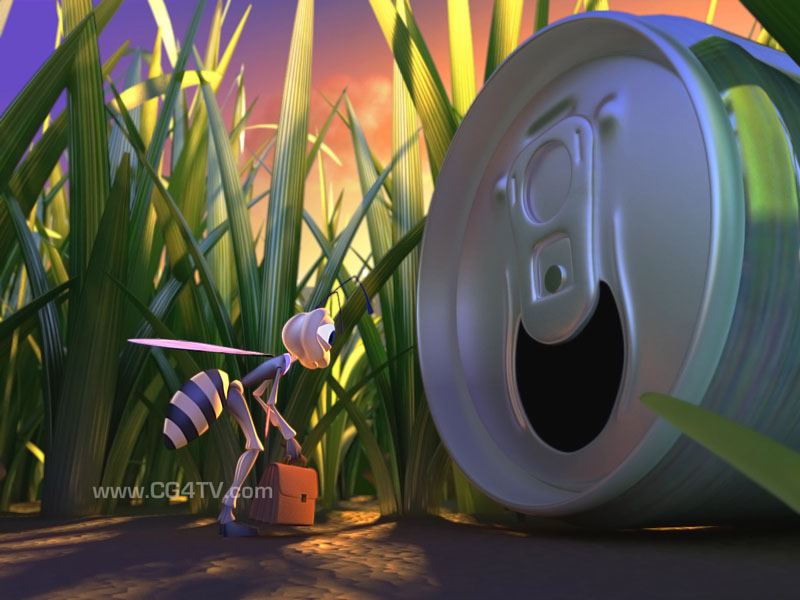
Last but not least, to advertise something, 3D is quite eye catching and very different from the normal hand drawn animations or actors. Like Films, adverts requite animation which cuts quality but is worked on a lot more for quality instead of quantity.

 Not only is 3D eye catching and gives the wow-factor, it's good to really show a product off, or even a message. It doesn't even need to look realistic either. Like the bee and the can (to the left), it looks cartoony, but simple and understandable of what it is. Advertising is really just to get people really focusing on what you're trying to sell or bring to light, and 3D really has that impact.